Tutorial 2 of 5
Compose panels, art and lettering
Beginner 7 min
Edit a book page using the shared Comic Desk engine and export clean artwork.
Select a book page and choose Edit selected page. Panelcraft opens the shared Comic Desk editor. The book remains underneath; changes immediately update its selected page and enter the book history.
Make a panel layout
Select a panel from the reading-order list or directly on the preview. Drag it to move it, or use exact pixel position and size fields. Split into columns and Split into rows divide it using the page gutter. Duplicate selection copies the selected panel, including its artwork, as an independent copy.
Expand Page and print settings for the page dimensions, resolution, margin guide, gutter and border. The page resolution controls the physical export size: millimetres equal pixels divided by DPI, multiplied by 25.4. It does not add detail to an imported image.
Each page has its own panel reading direction. Book binding controls booklet order separately.
Add art and a voice
Import panel image accepts PNG, JPEG and WebP. The browser converts it to an embedded PNG, downsizing when necessary. Choose Contain to preserve the complete image or Cover to fill the panel. Zoom and pan set the crop.
Select a speech balloon, thought balloon or caption box. Edit its text, size and tail position in the properties panel. Fit lettering reduces its font size within the supported range.
Overflow warnings block page art exports. Enlarge the balloon or shorten its text before exporting. The editable book still preserves the full dialogue. Font measurements are approximate, so review the exported art before printing.
Save the result
The editor exports a full-size PNG, an SVG with physical dimensions, and the page's lettering CSV. Editing guides and selection highlights stay out of the art.
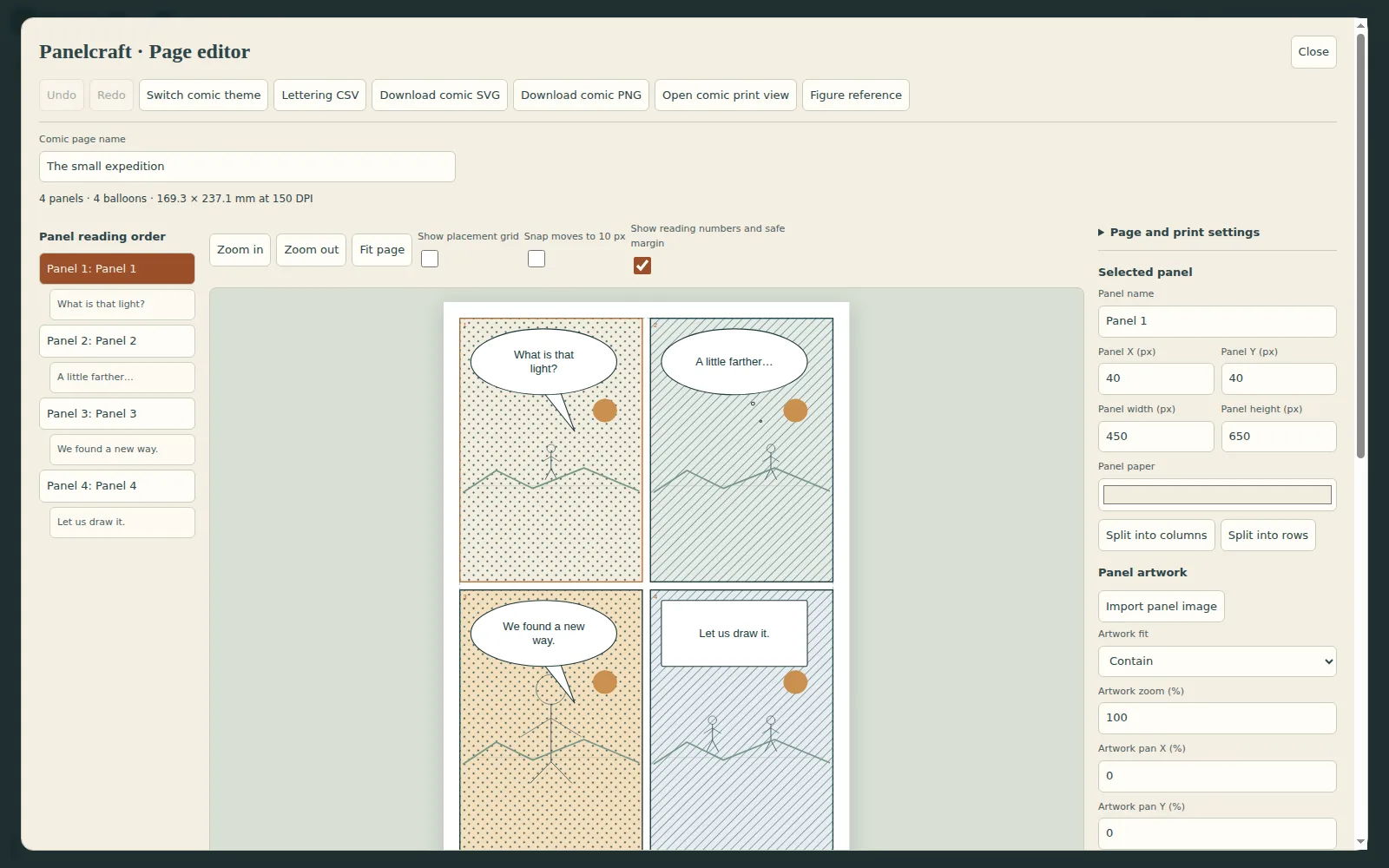
Close the page editor to return to the book. Save book keeps the updated page in the complete editable project. Use the original painting project in Flipline or Lumina for further brush work, then reimport a new snapshot.
Revise dialogue across a book
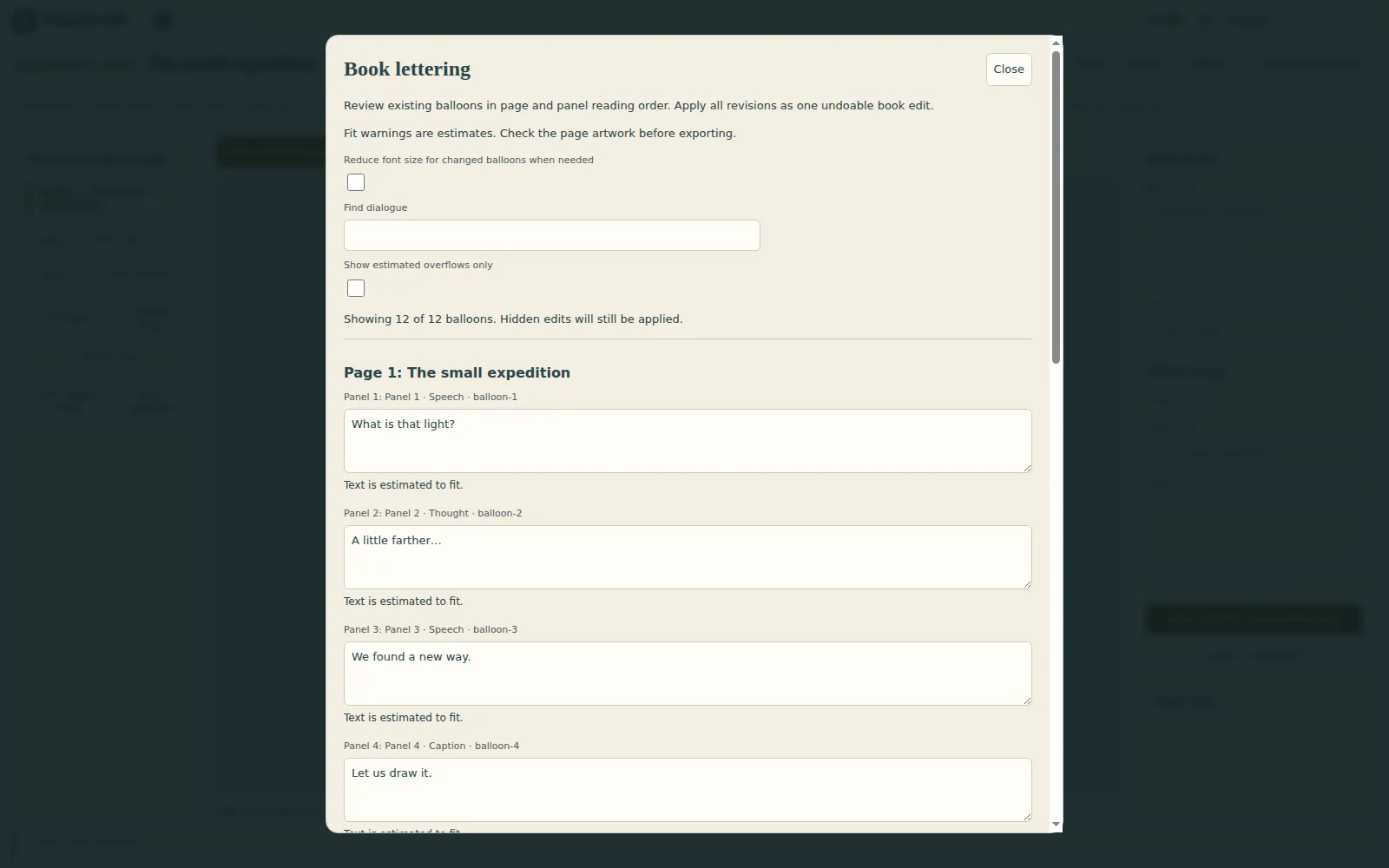
Choose Book lettering in the main book toolbar to review existing balloons from all pages in panel reading order. Edit several lines and choose Apply lettering to make one book edit; Undo restores the previous text. The workbench only changes existing balloon text. Add, delete, resize and position balloons in the page editor.
Use Find dialogue to filter by literal text without regard to letter case. Choose Show estimated overflows only to focus on balloons that may need more room; the estimate reflects the optional font-size reduction. Search updates as you type in the search box, and an edited line is rechecked when you leave it. Hidden lines keep their unsaved edits and Apply lettering applies all changes, including hidden ones.
The fit message estimates whether each line fits the current balloon. Optionally enable Reduce font size for changed balloons when needed to reduce lettering to the supported minimum of 12 px. Some text can still overflow at that minimum. Review the page and adjust the balloon when warned; overflow continues to block clean comic art exports. The estimate does not replace checking the exported lettering in your actual font.
Ready to try it?