Tutorial 3 of 5
Screentones and figure references
Intermediate 8 min
Add repeat patterns and original posed mannequins to support your comic artwork.
Panelcraft combines reusable pattern settings with a small local figure-reference studio. Both are drawing aids that stay editable as recipes.
Apply a screentone
Open a page and select a panel. Under Panel screentone, choose Dots, Lines or Crosshatch in Tone pattern. Pitch controls repetition spacing in pixels. Coverage controls the nominal proportion of ink. Angle rotates the repeat.
Nominal tone frequency is page DPI divided by pitch. A pitch of 15 pixels at 150 DPI gives ten lines per inch. The controls report this frequency so you can compare patterns at different resolutions.
Tick Tone above artwork to place the pattern over imported art, and change Tone ink. Download panel tone SVG exports a standalone swatch and Save panel tone recipe keeps the settings as a reusable file. The same recipe can be reused in Flipline Comic Desk. Recipe conversion preserves frequency where the target pitch stays within the supported range.
Stage a figure
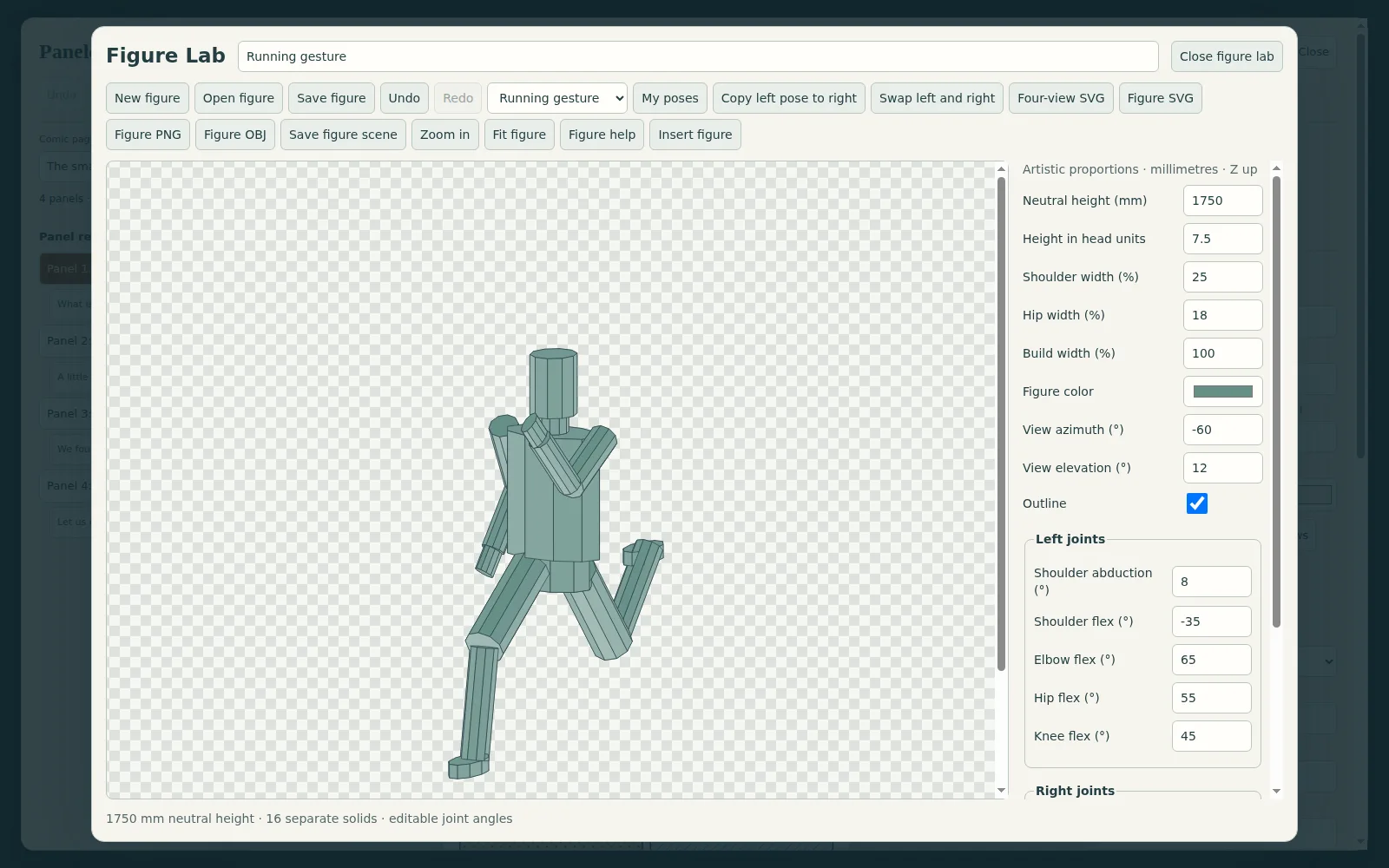
Choose Figure reference in the book properties or in the page editor. Figure Lab displays an original low-poly mannequin. Pick a starting pose such as Running gesture from the pose list. Adjust proportions and joint poses, then change the camera to match your intended composition.
Use a neutral pose to check proportions, a walking pose for an action beat, or a seated pose for a conversation. The preview updates locally. The figure is geometric reference material, rather than an anatomical scan or a rigged character asset.
Choose Insert figure to place a rendered PNG into the selected comic panel. Existing panel artwork becomes a snapshot of the reference. Continue drawing over the reference in your painting app and import the finished art back into the page.
Save poses and compare angles
Open My poses, name the current pose and choose Save current pose. Later choose Use pose to restore its joint angles while keeping the current proportions and camera. Up to 30 named poses stay in the current app’s browser storage. Panelcraft and Renderloom use separate saved lists; keep a figure JSON file when moving work between apps or devices.
Choose Four-view SVG for a transparent sheet at four quarter-turn camera angles. Each view is fitted independently, so the sheet is for visual reference rather than precise measurement.
Keep reusable sources
Save figure downloads the figure recipe so you can revisit its pose and proportions. Figure SVG and Figure PNG provide flat reference views; Figure OBJ exports the geometric mannequin as a static model and Save figure scene writes a Form Studio scene. Figure Lab has its own Undo, Redo and Figure help.
The comic book stores the inserted image. Keep the separate figure recipe for future pose changes. Panelcraft does not import MakeHuman projects, external asset libraries or skeletal animation.
Ready to try it?